
Uploading Files
Learn how to upload Excel files, CSVs, and Google Sheets exports to your Seeds in Reseed.
Select a Seed
Before uploading, you need to select the Seed you want to upload to. Navigate to the Seeds page and select a Seed from the Seed selector dropdown.
For example, select sample_budget_requests (app_admin) from the Seed selector. The text in parentheses shows the current owner of the Seed—all Seeds are owned by one in-app role, which controls who can see and interact with them.
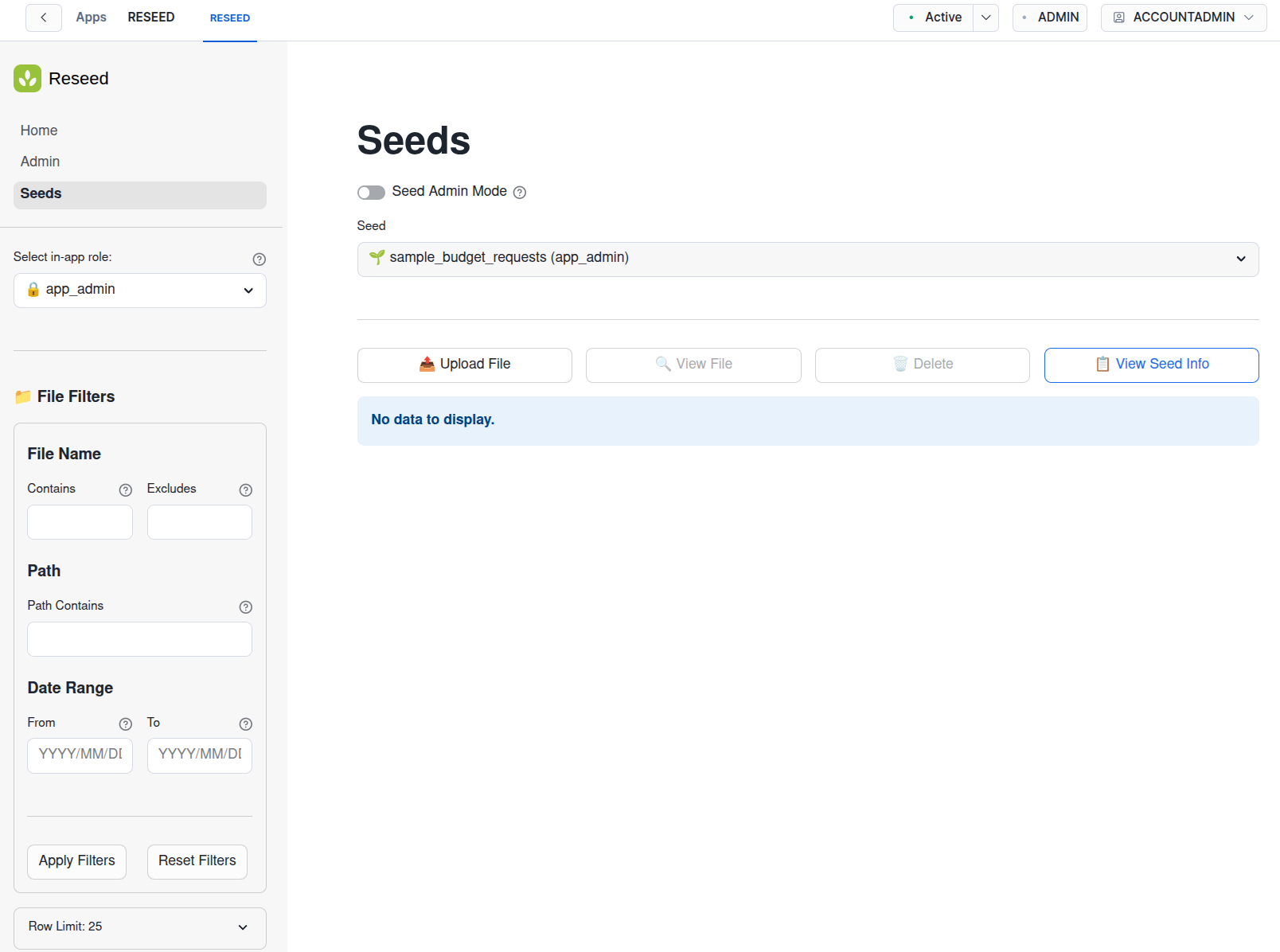
Upload Steps
- From the Seeds page, select the Seed you want to upload to.
- Click Upload.
- Select your file (Excel, CSV, or Google Sheets export).
- If uploading Excel, choose which worksheet and cell range to import.
- Click Validate to check the file against your Seed's rules.
- If validation passes, click Upload to save the file.
Reseed validates your file before uploading it. This ensures data quality and catches errors early. If validation fails, Reseed shows you exactly what's wrong—which rows and columns have issues—so you can fix your data and try again.
Understanding Validation
Reseed validates uploads instantly, catching issues before data is saved to your storage database:
- Missing or unexpected columns — Schema must match the Seed definition
- Data type mismatches — Numbers, dates, and booleans are type-checked
- Constraint failures — Required fields, ranges, patterns, allowed values
- Naming pattern violations — Enforce file naming conventions
Invalid files are rejected with detailed error reports showing exactly which rows and columns have issues.
For detailed information about validation rules and how to configure them, see the Validation Rules guide.
Accessing Your Data
Reseed organizes files in its storage database by Seed name. For Seeds with guest access (multiple roles), files are further organized by role:
RESEED_DATA.CORE.RESEED_STAGE/
├── sample_budget_requests/
│   ├── finadmin/          ← Isolated directory for this role
│   ├── hrmanager/         ← Isolated directory for this role
│   └── marketingadmin/    ← Isolated directory for this role
└── sample_row_level_security_map/
    └── ...
All files are stored as compressed CSV (.csv.gz) regardless of upload format (Excel or CSV). Query them directly:
-- List files in your storage stage
LIST @RESEED_DATA.CORE.RESEED_STAGE;

-- Query uploaded data directly
SELECT
    $1 AS column_1,
    $2 AS column_2,
    $3 AS column_3
FROM @RESEED_DATA.CORE.RESEED_STAGE/sample_row_level_security_map/;
This consistent file format and predictable organization lets downstream processes—SQL, dbt, Snowpark—confidently target these directories.
Supported File Types
Reseed supports the following file formats:
- Excel (.xlsx) — Choose specific worksheets and cell ranges to import
- CSV (.csv) — Standard comma-separated values
- Google Sheets — Download as .xlsx or .csv and upload
When uploading Excel files, you can select which worksheet to import and specify a cell range (e.g., A1:Z100). This is useful when your spreadsheet has multiple sheets or you only want to import a specific section.